This page walks you through your first week with Rainier IT, one step at a time. You don't need any technical knowledge to follow it.
| Your plan | What applies to you |
|---|---|
| Managed plan | This page. Follow Steps 1 to 7 in order. |
| Ordered online (self-serve) | Start with Getting started: self-serve instead. |
We never ask for your password by email or phone. Real links go only to sso.rainier-it.com or portal.rainier-it.com. If in doubt, call (206) 593-8072.
¶ Who this is for
The person at your office who looks after the computers: an office manager, an owner, or whoever we set up as your main contact. You do Steps 1 to 4 once. You repeat Step 5 on each computer.
¶ What you need
- Access to the work email address you gave us.
- A phone, for two-step sign-in.
- The Windows 10 or 11 computers you want us to look after.
- A Windows account on each computer that can install software (an administrator account). If you're not sure, try Step 5 and we help if it stops.
¶ Step 1: Recognise the welcome email
- Look in your inbox for an email from Rainier IT, sent from an @rainier-it.com address.
- Check that it's addressed to you by name and mentions your company.
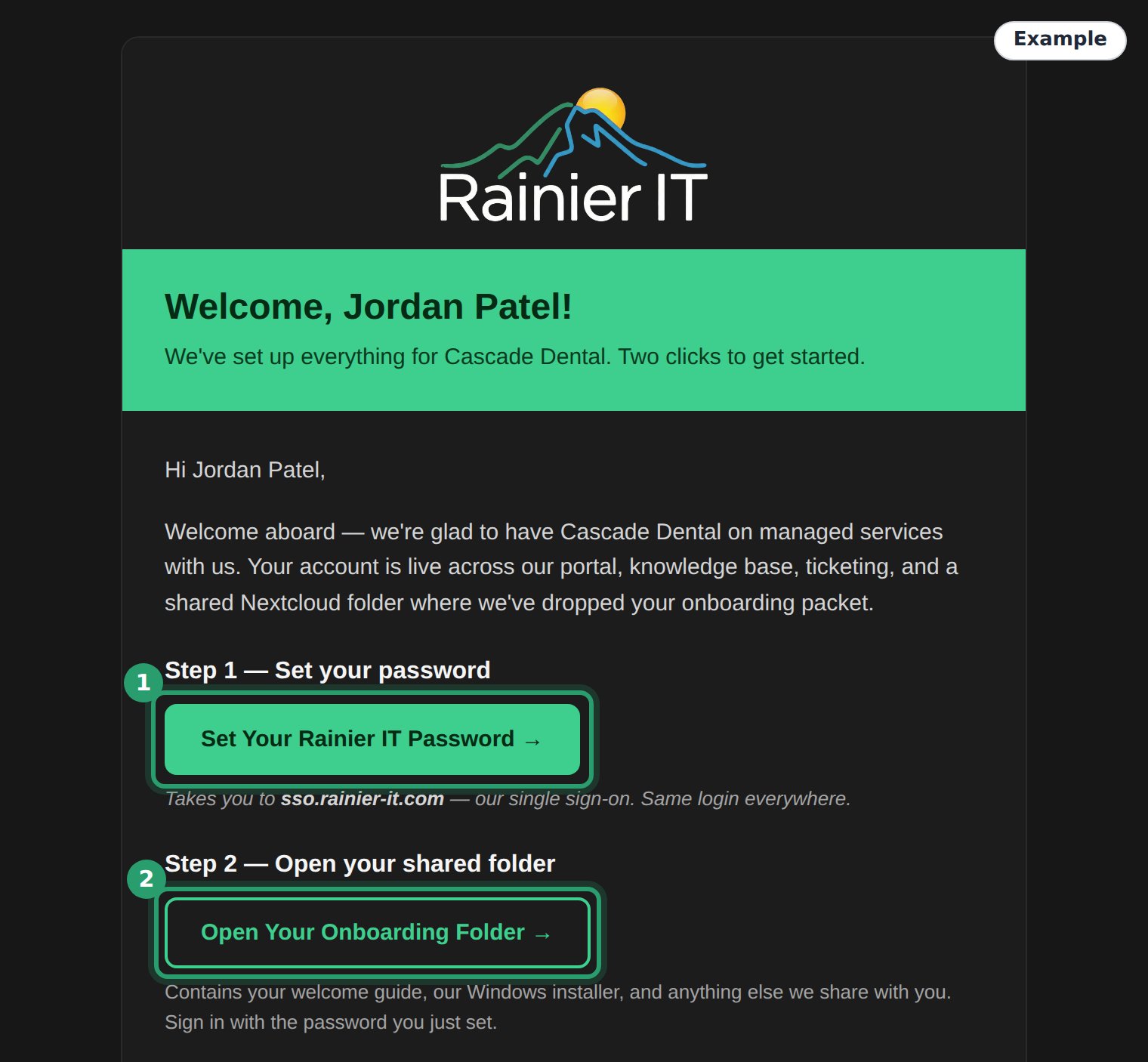
You'll know it's really us when the email comes from an @rainier-it.com address and the password button opens a page on sso.rainier-it.com. If anything looks off, call (206) 593-8072 before you select anything.
Can't find it? Check your spam or junk folder. Still nothing: email [email protected] and we send it again.
¶ Step 2: Set your password
- Select the "Set Your Rainier IT Password" button in the welcome email.
- Check that your browser's address bar shows sso.rainier-it.com.
- Type a new password, then type it again to confirm.
- Select the button to continue.
You'll know it worked when the page moves on to setting up two-step sign-in (Step 3).
The link in the email works once and expires. If it has expired, email [email protected] and we send you a new one.
¶ Step 3: Set up two-step sign-in
Two-step sign-in means a stolen password alone can't get anyone into your account. Everyone we set up does this on their first sign-in. You choose one of two ways:
- An authenticator app on your phone, such as Google Authenticator or 1Password. It shows a six-digit code that keeps changing.
- A passkey, for example Windows Hello on your computer, or Touch ID or Face ID. You confirm with your fingerprint, face or PIN instead of typing a code.
Using an authenticator app:
- Install an authenticator app on your phone if you don't have one.
- Choose the authenticator app option on the sign-in page.
- Open the app on your phone and scan the square code on the screen.
- Type the six-digit code the app shows, then continue.
Using a passkey:
- Choose the passkey option on the sign-in page.
- Follow your computer's or phone's prompt, and confirm with your fingerprint, face or PIN.
You'll know it worked when the Client Portal opens on Overview.
Keep the phone or computer you set up. You need it when you sign in.
¶ Step 4: Download the installer
- Select Open Your Onboarding Folder in the welcome email.
- Sign in with the password you set in Step 2, if asked.
- Download the Windows installer from the folder. Your welcome pack is there too.
You'll know it worked when the installer is in your Downloads folder.
Save the installer somewhere you can reach from every computer, such as a USB stick, or download it again from the folder on each one.
¶ Step 5: Install on each computer
Run the installer once on every Windows computer you want us to look after. It takes a few minutes per computer and nobody needs to visit.
- Follow Installing the agent on the first computer.
- Repeat it on each of the other computers.
The installer sets up our monitoring agent and our security tools. It doesn't read or upload your files. Installing the agent lists exactly what it changes.
You'll know it worked when the installer ends with the line
Monitoring agent running, and a few minutes later the computer shows on the Devices page of the Client Portal.
¶ Step 6: Sign in to the Client Portal
- Go to portal.rainier-it.com.
- Select the "Sign in with Rainier IT SSO" button, then sign in with your password and your second step.
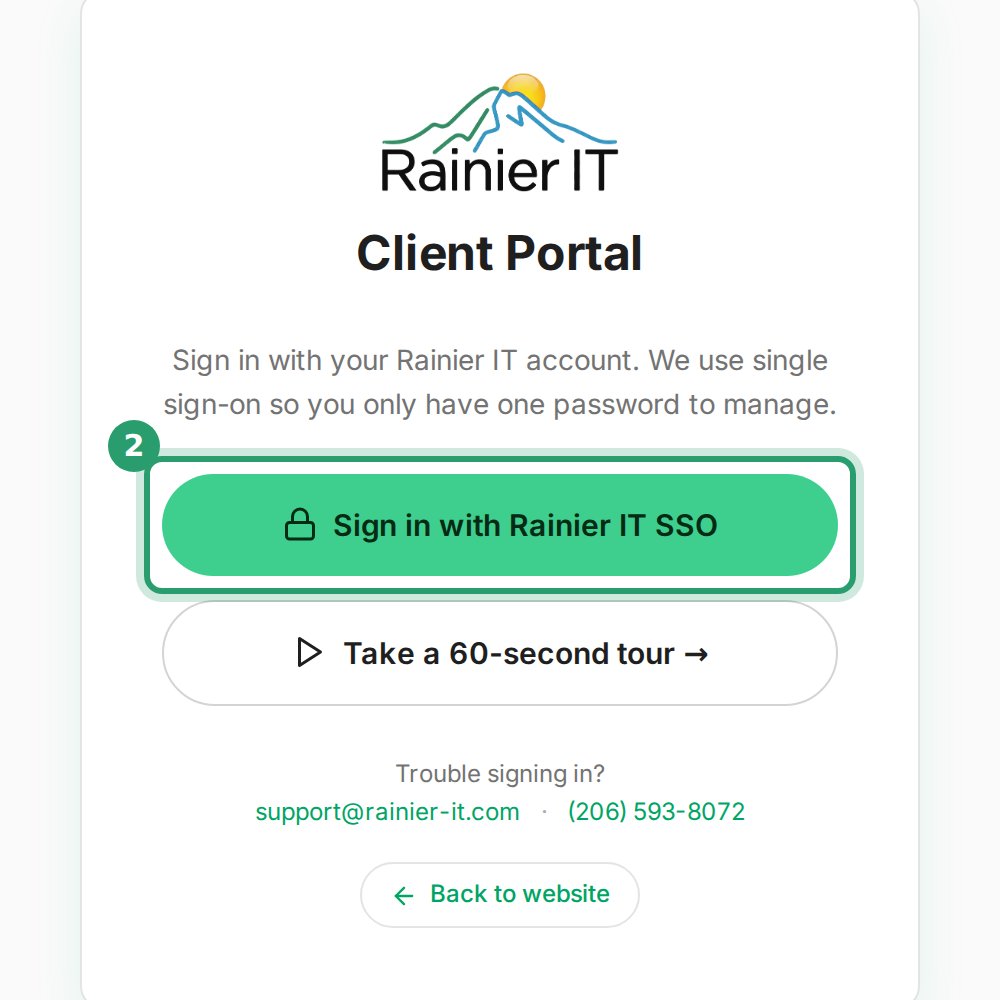
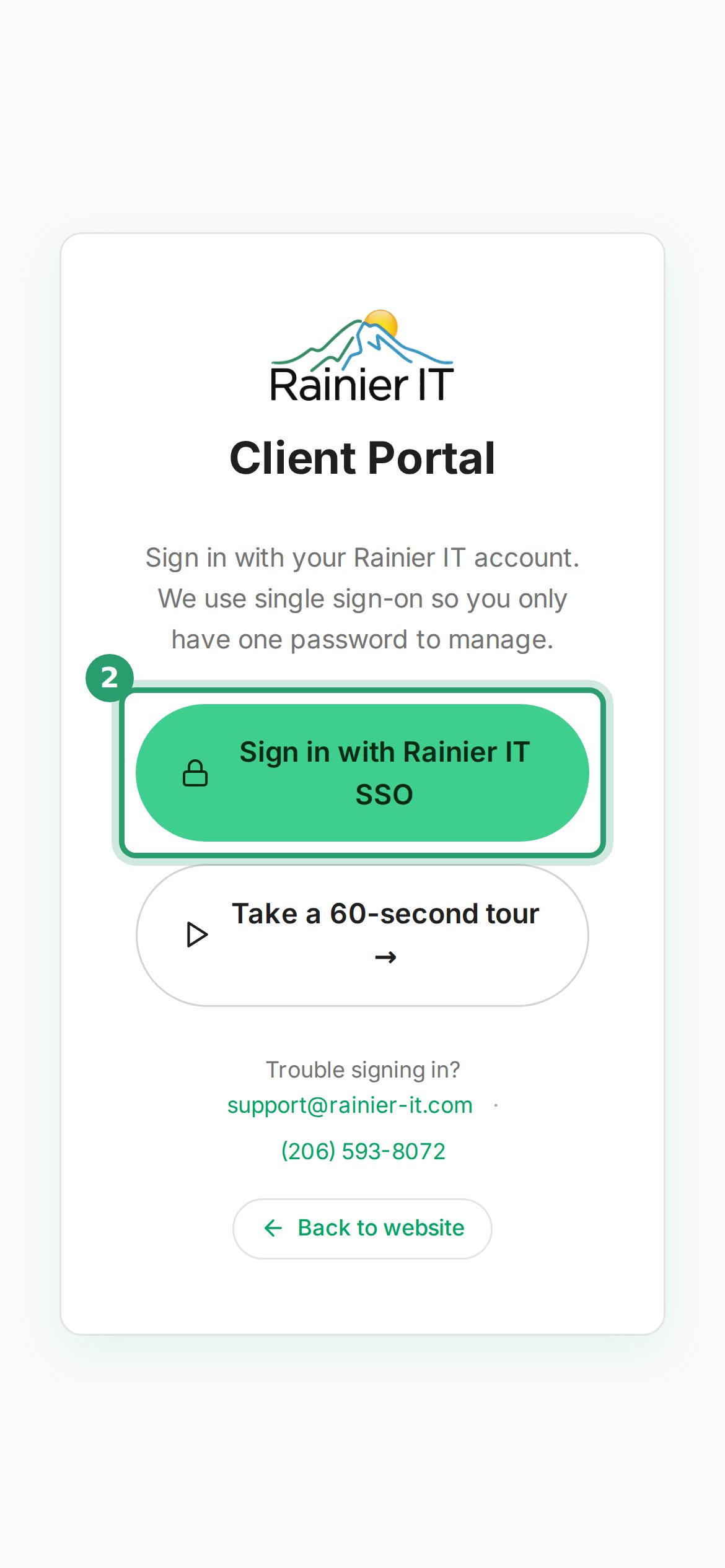
You'll know it worked when the portal opens on Overview with your company name at the top.
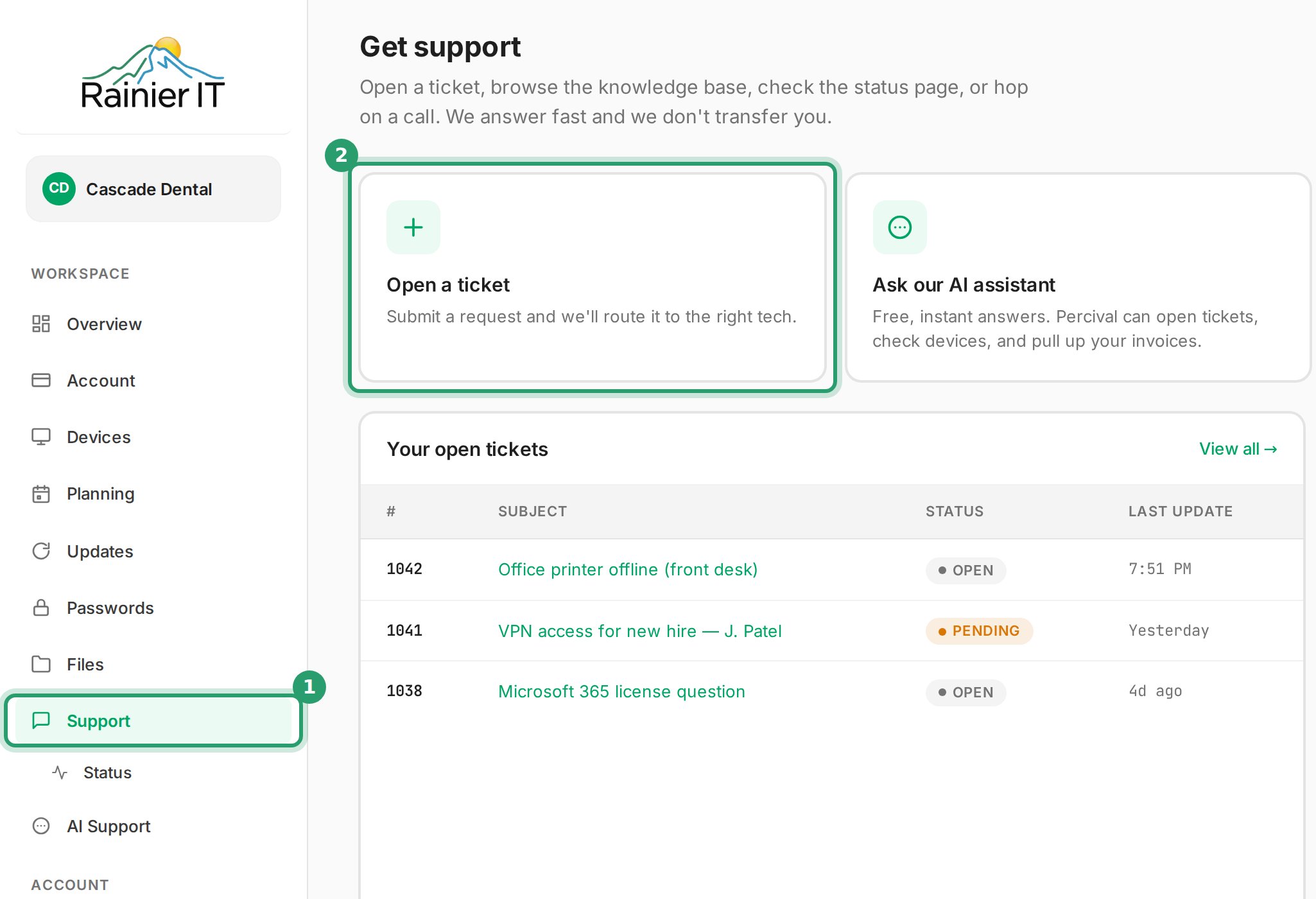
The menu on the left takes you around the portal:
- Overview: a summary of your computers and tickets.
- Devices: each computer we look after and its health.
- Support: your tickets, and where you open a new one.
- Files: your shared folder with us.
- Account: your company details, plan, and invoices.
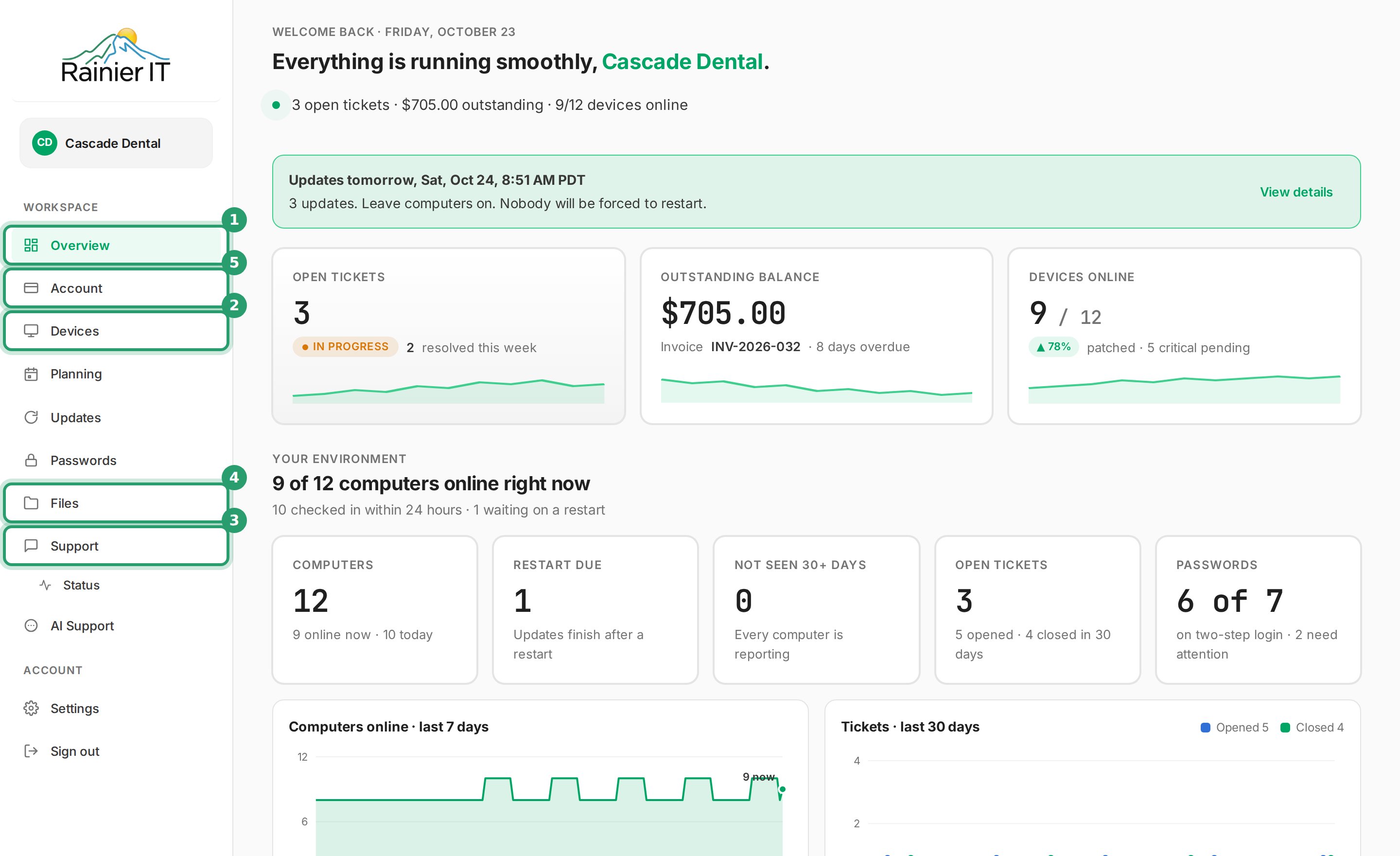
On a phone, the menu is behind the menu button at the top of the page. If yours runs across the top, some pages may be under More.
¶ Step 7: Send a test ticket
A test ticket shows you how asking for help works, and tells us everything is connected.
- Select Support in the menu.
- Select Open a ticket.
- Type a short title in Subject, for example "Test ticket".
- Type a sentence in What's going on?, for example "Checking that tickets reach you."
- Leave How urgent is it? on Normal.
- Select Submit ticket.
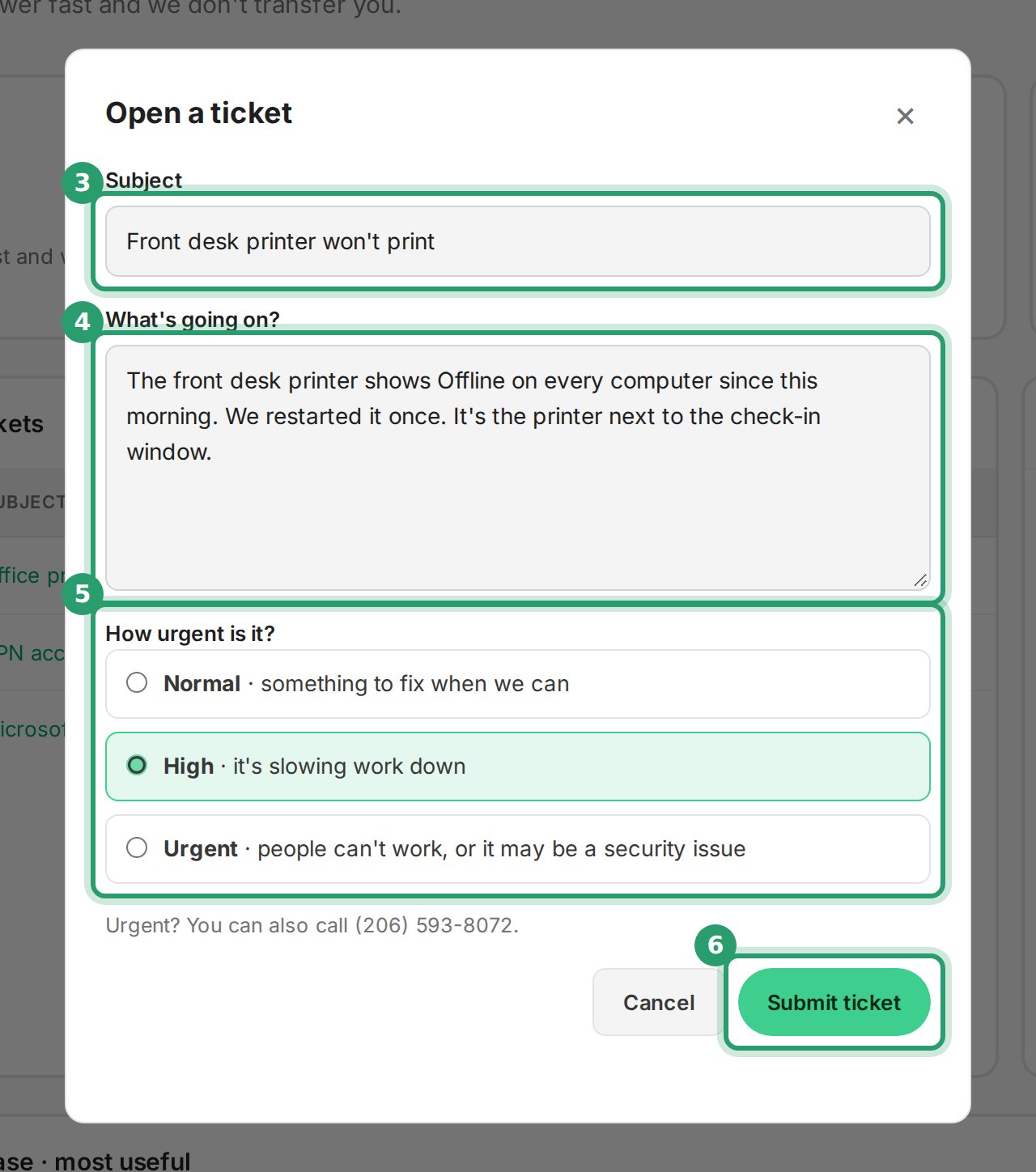
You'll know it worked when the ticket shows in your list on the Support page. We reply to it there and by email.
You can also open a ticket any time by emailing [email protected]. See Submitting a ticket.
¶ Your first-week checklist
- Set your password (Step 2).
- Set up two-step sign-in (Step 3).
- Download the installer (Step 4).
- Install on every computer you want us to look after (Step 5).
- Check each computer shows on Devices (Step 6).
- Send a test ticket (Step 7).
When all six are done, you're set up.
¶ What we watch
Once the agent is installed, we keep an eye on:
- Availability: whether each computer is online and checking in.
- Performance: the processor, memory and disk.
- Security: alerts from your antivirus and threat-detection tools.
- Updates: pending Windows updates and overdue restarts.
- Storage: drive health and free space.
When something needs attention, we get an alert and a ticket opens. Often we start on it before you notice.
¶ Privacy in brief
We look after your computers; we don't watch your staff.
- We don't read, index or upload your files.
- You're asked before we connect to a computer's screen, and a bar shows while we're connected.
- If you leave us, we remove our agent and delete your data within 30 days. Billing records are kept for 7 years.
What we access (sign-in required) has the full detail.
¶ Troubleshooting
¶ No welcome email
Check your spam or junk folder. Then email [email protected] or call (206) 593-8072 and we send it again.
¶ The password link has expired
The link works once and expires. Email [email protected] and we send you a new one.
¶ Lost phone or can't do the second step
Call (206) 593-8072. Once we've confirmed it's you, we reset your two-step sign-in so you can set it up again.
¶ Signed in as the wrong person
Select Sign out in the portal menu, or under your company name at the top right. Close the browser window, then sign in again with your own email address.
¶ The installer stops with an error
See the troubleshooting section of Installing the agent, or email us the last lines it showed.
¶ Common questions
¶ Email and Wi-Fi keep working
You don't install anything for email or Wi-Fi. They keep working as they do today.
¶ Remove other antivirus first
Uninstall any other antivirus product before you run our installer. Two antivirus products on one computer slow it down and cause false alarms.
¶ Macs, Linux and servers
Our installer is for 64-bit Windows 10 and 11. For Macs, Linux or servers, email [email protected] and we set them up with you.
¶ Why sign-in goes to sso.rainier-it.com
That's our single sign-on page. One account and one password open the Client Portal, this help center and your shared folder.
¶ Your data stays yours
You own your data. We look after it; we don't own it.
¶ Contact
- Email [email protected]. Any email there opens a ticket.
- Call (206) 593-8072, Mon–Fri 8am–6pm PT, with emergency incident response as needed.
- If you think a computer is infected right now, follow My PC got infected and call us.
- Is something down for everyone? See Service status.
¶ Sources
- Authenticator validation stage, authentik docs: users without a second step are made to set one up ("Configure").
- TOTP authenticator setup stage, authentik docs: authenticator apps such as Google Authenticator or 1Password scan the code; six-digit codes.
- WebAuthn / FIDO2 / Passkeys authenticator setup stage, authentik docs: Windows Hello, Touch ID, Face ID and passkeys.
- Default flows, authentik docs: the recovery flow that sets your password.
- Support for passkeys in Windows, Microsoft Learn: passkeys use your device's fingerprint, face or PIN.
- Managed IT plans, Rainier IT.
Last reviewed: October 2026