You run our installer once on each Windows computer. It installs our monitoring agent, sets up Microsoft Defender for business use, and installs the security tools on your plan. This page walks through every step and every message you see.
| Your plan | What applies to you |
|---|---|
| Managed plan | Get the installer from Devices in the Client Portal, or from your onboarding folder. Then follow every step on this page. |
| Ordered online (self-serve) | Get the installer from Downloads in the Client Portal. Then follow every step on this page. It is the same kind of installer, made for your company. |
¶ Who this is for
Anyone who can sign in to a Windows computer as an administrator. You don't need to be technical: you paste three lines into a window and read the result. Plan on a few minutes per computer.
¶ Before you start
- A Windows 10 or Windows 11 computer, 64-bit.
- An account on that computer that can run programs as administrator.
- An internet connection.
- Your installer file,
install-rainier-agents.ps1. Step 1 shows where to get it.
To check that Windows is 64-bit:
- Right-click Start and open Windows Settings.
- Select System, then About.
- Look under Device specifications. It says whether the computer runs a 32-bit or a 64-bit version of Windows.
You'll know it worked when you see "64-bit" under Device specifications.
¶ Windows 10 support has ended
Microsoft ended support for Windows 10 on October 14, 2025. A Windows 10 computer still works, but it no longer gets security fixes from Microsoft, so it is at greater risk from viruses and malware.
We still install on 64-bit Windows 10, and the installer works the same way. But our tools can't fix the holes that Windows itself no longer patches. Plan to move those computers to Windows 11, or replace them. Microsoft's Extended Security Updates (ESU) program can keep a Windows 10 computer getting security fixes for a limited time. Ask us and we help you plan.
¶ Keep your installer private
Your installer is made for your company. Anyone who runs it adds a computer to your account. Don't forward it, post it, or put it on a shared drive outside your company.
If your network filters web traffic, the installer needs to reach a few vendors: Microsoft, for Defender updates; GitHub, because the Huntress stage downloads Huntress's official install script from there; and Huntress itself. Installers for plans with patching also download from Action1. If a download fails, email us and we tell your IT person what to allow.
¶ Step 1: Get your installer
¶ Managed plan: from Devices
- Sign in at portal.rainier-it.com.
- Select Devices in the menu.
- Under Adding a new device?, select Download .ps1.
The same file is also in your onboarding folder: open it with Open Your Folder in your welcome email, or from Files in the portal.
You'll know it worked when
install-rainier-agents.ps1is in your Downloads folder.
¶ Self-serve: from Downloads
Sign in at portal.rainier-it.com. On Overview, in the Your services card, select Downloads.
- Next to Windows installer, select Download.
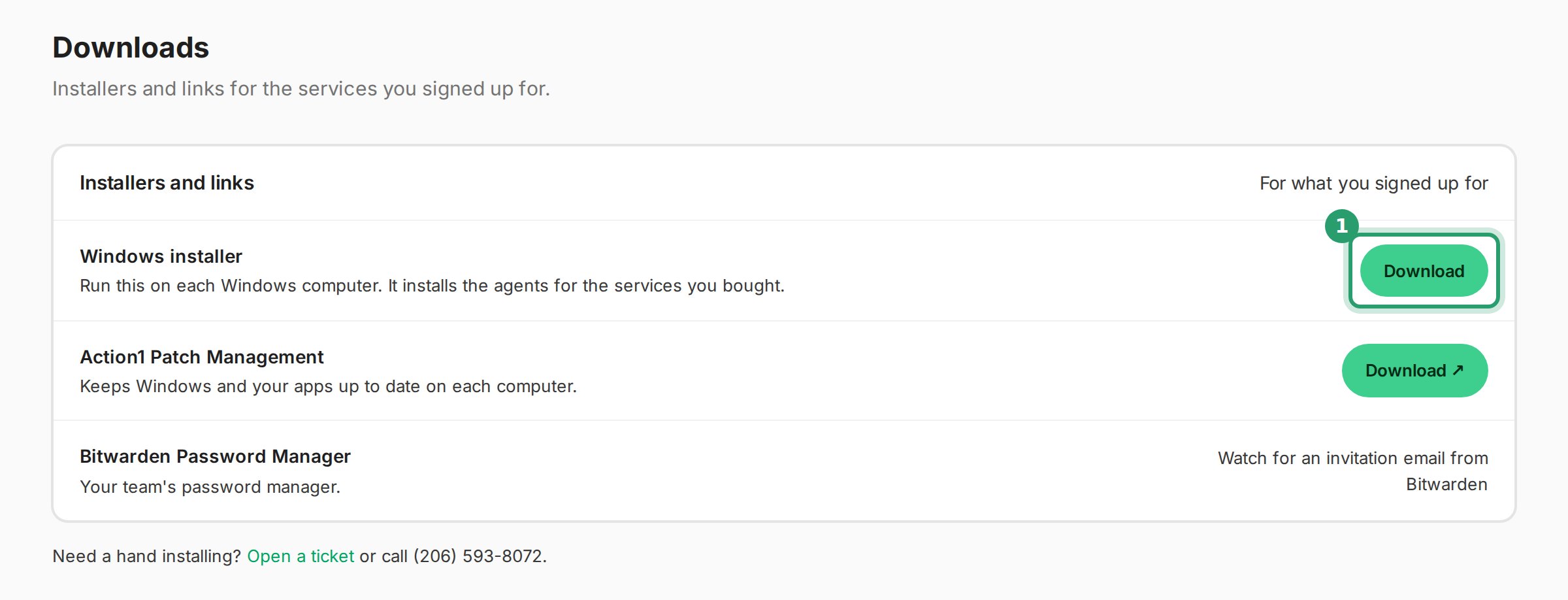
You'll know it worked when
install-rainier-agents.ps1is in your Downloads folder. Most browsers save it there.
If Downloads says your plan is paused, or the installer isn't there, email [email protected].
Copy the file to each computer you want to set up, into that computer's Downloads folder. A USB stick works.
¶ Step 2: Open PowerShell as administrator
- Open the Start menu.
- Type
Windows PowerShell. - Select Windows PowerShell, then select Run as administrator.
- Select Yes in the User Account Control prompt. If Windows asks for a password instead, an administrator types theirs.
A window opens with text like this:
Windows PowerShell
Copyright (C) Microsoft Corporation. All rights reserved.

PS C:\WINDOWS\system32>
You'll know it worked when the window's title bar starts with Administrator. If it doesn't, close the window and do this step again.
¶ Step 3: Allow scripts in this window
Windows doesn't run downloaded scripts by default.
- Paste this line and press Enter:
Set-ExecutionPolicy -Scope Process -ExecutionPolicy Bypass -Force
This changes the setting for this one window only. Windows forgets it when you close the window.
You'll know it worked when a new prompt appears and nothing else happens. No message is normal.
¶ Step 4: Go to your Downloads folder
- Paste this line and press Enter:
cd $env:USERPROFILE\Downloads
You'll know it worked when the prompt ends in
\Downloads>, for examplePS C:\Users\jordan.patel\Downloads>.
¶ Step 5: Run the installer
- Paste this line and press Enter:
.\install-rainier-agents.ps1
The installer prints a banner with your company name:
==============================================================================
Rainier IT Endpoint Onboarding — Cascade Dental
==============================================================================
Then it works through its stages. Each stage starts with a banner like Stage 2: Defender baseline:
- Our monitoring agent is downloaded and installed.
- Microsoft Defender is set up for business use. What the security baseline does lists every setting.
- Huntress Managed EDR is installed with Huntress's own install script, if your plan includes it.
Installers for some plans have more stages, for patching (Action1) and for backup. A stage for a service you don't have says it is skipping. That is normal.
Lines marked [WARN] are worth a look but don't stop the install. Leave the window open until you see the summary.
You'll know it worked when the window shows a banner that says
Summary.
¶ Step 6: Read the summary
The summary looks like this. The dates, versions and some lines differ on your computer:
==============================================================================
Summary
==============================================================================
[2026-10-23T09:14:02-07:00] [INFO] Defender real-time:   True
[2026-10-23T09:14:02-07:00] [INFO] Defender AV enabled:  True
[2026-10-23T09:14:02-07:00] [INFO] Defender tamperprot:  True
[2026-10-23T09:14:02-07:00] [INFO] Engine / sig ver:     <engine version> / <signature version>
[2026-10-23T09:14:02-07:00] [INFO] Monitoring agent running:   True
[2026-10-23T09:14:02-07:00] [INFO] Huntress agent running: True
[2026-10-23T09:14:02-07:00] [INFO] === Install run complete ===

Done. If you saw any warnings above, email [email protected] with the log file:
  C:\ProgramData\RainierIT\install.log
What each line means:
- Defender real-time and Defender AV enabled: Microsoft Defender is on and scanning.
- Defender tamperprot: tamper protection is on, so other programs can't switch Defender's settings off.
- Engine / sig ver: the Defender version numbers on this computer.
- Monitoring agent running: our monitoring agent is installed and running.
- Huntress agent running: Huntress Managed EDR is installed and running.
Installers for plans with patching or backup print a line for each of those too.
You'll know it worked when the line for each service on your plan says
True. AFalseon a service you don't have is normal. AFalseon one you do have: see Troubleshooting below.
You can close the window now. The setting from Step 3 ends with it.
¶ Step 7: Check that the computer reports in
¶ Managed plan, or a self-serve plan with monitoring
- In the Client Portal, open Devices and find the computer by its name.
- Check its status. Give it a few minutes after the install.
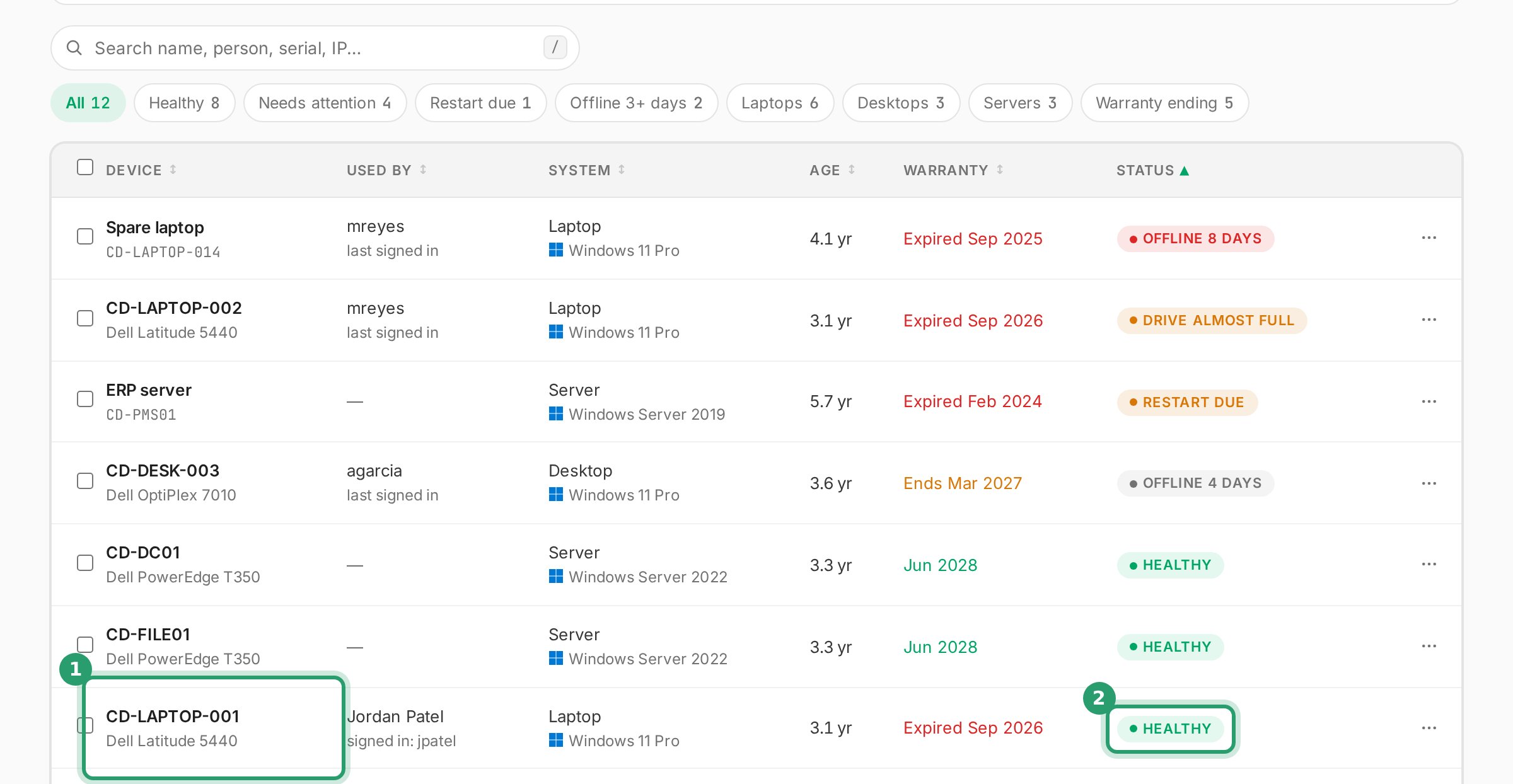
You'll know it worked when the computer is on the list and shows as online.
¶ Any plan: tell us
Email [email protected] with the computer's name and we confirm it from our side. To find the name, run this in the PowerShell window before you close it:
$env:COMPUTERNAME
¶ Check Windows Security
- Open the Start menu, type
Windows Security, and open it. - Select Virus & threat protection.
- Select Manage settings.
You'll know it worked when Real-time protection and Cloud-delivered protection are on. Some settings may say they are managed by your organization. That's our baseline.
¶ Troubleshooting
| What you see | Likely cause | What to do |
|---|---|---|
| "install-rainier-agents.ps1 cannot be loaded", with a pointer to about_Execution_Policies | Step 3 was skipped, or done in another window | Run the line from Step 3 in this window, then Step 5 again |
| The same message right after Step 3 | Your organization sets the script policy centrally, which overrides Step 3 | Email us. Your IT administrator may need to allow it |
| "The term '.\install-rainier-agents.ps1' is not recognized" | The window isn't in the folder that holds the file | See "The file can't be found" below |
| An error that the script needs to run as Administrator | The window isn't running as administrator | Close it and redo Step 2 |
Unsupported: 32-bit Windows |
The computer runs 32-bit Windows. Our agents are 64-bit only | Open a ticket and we plan next steps with you |
Installer too small (… bytes) and "deployment link may be expired" |
The download link built into your installer has expired. Links last 90 days | Email us. We send you a new installer |
PREFLIGHT FAIL: 3rd-party AV active |
Another antivirus product is in charge, and it would block our monitoring agent | Uninstall the other antivirus, restart, and run the installer again. Email us if you need to keep it |
HuntressAgent service did not reach Running within 60s |
Huntress is still starting, or its install failed | Wait 5 minutes and run the installer again. If it repeats, email us the log files |
A line ends False for a service on your plan |
That stage didn't finish | Run the installer again. If it still says False, email us the log file |
| Windows Security blocks or removes the installer file | Defender flagged the file | Don't allow it yourself. Forward the alert to [email protected] and we check you have the right file |
¶ The file can't be found
- Run this line:
dir $env:USERPROFILE\Downloads\install-rainier-agents.ps1
You'll know it worked when the file is listed. Run Step 4 and Step 5 again. If you get "Cannot find path", check the file's name (a second download may be called
install-rainier-agents (1).ps1) and that it's in your Downloads folder.
¶ The installer seems stuck
Some stages wait for a download, and the Huntress stage can wait up to a minute for its service to start. If nothing new appears for 10 minutes:
- Open File Explorer and go to
C:\ProgramData\RainierIT. - Open
install.logand look at the last line.
If the last line keeps changing, the install is still working; wait. If it hasn't changed for 10 minutes, close the installer window and email us the log file.
¶ Sending us the log
The log is C:\ProgramData\RainierIT\install.log. If the Huntress stage failed, also send C:\Program Files\Huntress\HuntressPoShInstaller.log. The logs contain details about your account, so send them only to [email protected] and don't post them anywhere.
¶ Running the installer again
You can run the installer as often as you like. A stage whose agent is already installed and running is skipped. The Defender settings are applied again, which does no harm. Run it again when:
- the computer was rebuilt or reset;
- a line in the summary said
False; - you're not sure an earlier run finished.
¶ Removing the agent
Don't uninstall our tools from Settings yourself. Open a ticket with the computer's name and we remove them: we take the computer off our monitoring and uninstall each agent.
If your installer also installed Action1 for patching, let us remove that one too. Action1 can change Windows Update settings, and those changes stay after the agent is uninstalled unless they are reset first. That is why we ask you not to uninstall it yourself.
The Defender settings from the baseline are Windows' own settings, so they stay. Tell us if you want any of them changed.
¶ Macs, Linux and servers
This installer is for Windows workstations only. For a Mac, a Linux computer or a server, email [email protected] and we send you the right steps.
¶ Common questions
¶ The installer doesn't change your files
It installs our tools and changes security settings. Your documents, email, and apps stay as they are.
¶ A restart isn't usually needed
If the installer turned off the old SMBv1 file-sharing protocol, that change finishes at your next restart. You don't need to restart right away.
¶ Other people can keep working
The installer runs in its own window. People can keep using the computer while it runs.
¶ You can set up many computers with one file
Use the same installer on every Windows computer at your company, until its link expires after 90 days.
¶ Still stuck
| [email protected]. Attach the log file if you have it | |
| Phone | (206) 593-8072, Monday to Friday, 8:00 AM to 6:00 PM Pacific |
| Log file | C:\ProgramData\RainierIT\install.log |
¶ Sources
- Find information about your Windows device, Microsoft Support
- Windows 10 support has ended on October 14, 2025, Microsoft Support
- Starting Windows PowerShell, Microsoft Learn
- How User Account Control works, Microsoft Learn
- about_Execution_Policies, Microsoft Learn
- Set-ExecutionPolicy, Microsoft Learn
- about_Requires, Microsoft Learn
- Get-MpComputerStatus, Microsoft Learn
- Virus and threat protection in the Windows Security app, Microsoft Support
- Supported operating systems and system requirements, Huntress Support
- Huntress deployment scripts, Huntress on GitHub
- Agent installation, Tactical RMM documentation. About the tool: our monitoring agent is built on Tactical RMM.
- Removing Action1, Action1 documentation
Last reviewed: October 2026